How to Download Data from Google Merchant Centre. And Why.
I use two spreadsheet formulas to find missing products and analyse Google Merchant Centre data. Find out how to download and manipulate TSV files here.

 Russell Welch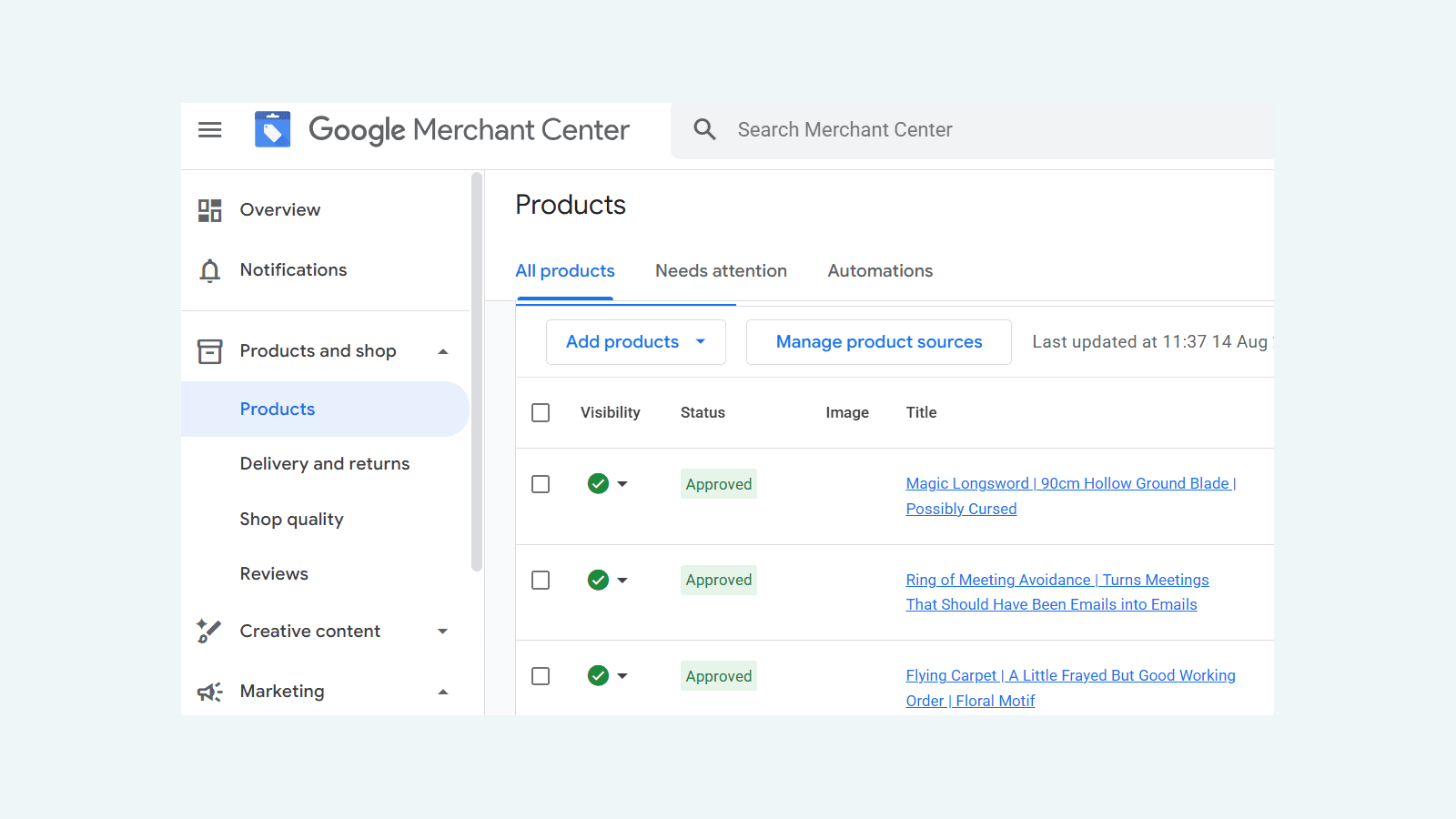
Downloading data from Google Merchant Centre (GMC) can be a useful way of analysing the performance of your products. But Google doesn’t exactly make it easy.
Most platforms give you download options like .csv, .xlsx, or Google Sheets. GMC doesn’t. If you download product data, it’s a .tsv file inside a .zip folder.
However, if you persevere and manage to open the file, you’ll unlock new options in terms of checking for issues and analysing the performance of your products.
In this article, we’ll look at what a TSV file is, explain how to download and open one, and give some practical examples of how you can analyse that data using VLOOKUP and XLOOKUP formulas.
What is a TSV file?
TSV stands for Tab-Separated Values. It’s a text-based spreadsheet file format that uses tabs between fields as a way of arranging the data.
CSV (Comma-Separated Values) is a similar, more common format that you’re probably already familiar with. The difference is that it uses commas as the separator, not tabs.
Google Merchant Centre downloads are TSVs and not CSVs because the product data has free text fields that can have commas and other values in. A CSV can handle that, but it would mean putting quotes around things to make sure they’re parsed correctly and not split over separate fields.
Overall, TSV results in a cleaner, simpler file.
How do I download product data from Google Merchant Centre?
Once you’ve logged in and navigated to the correct GMC profile, go to “Products and shop” on the left hand side, and click “Products”.
If you scroll down a little, you should see something like this.
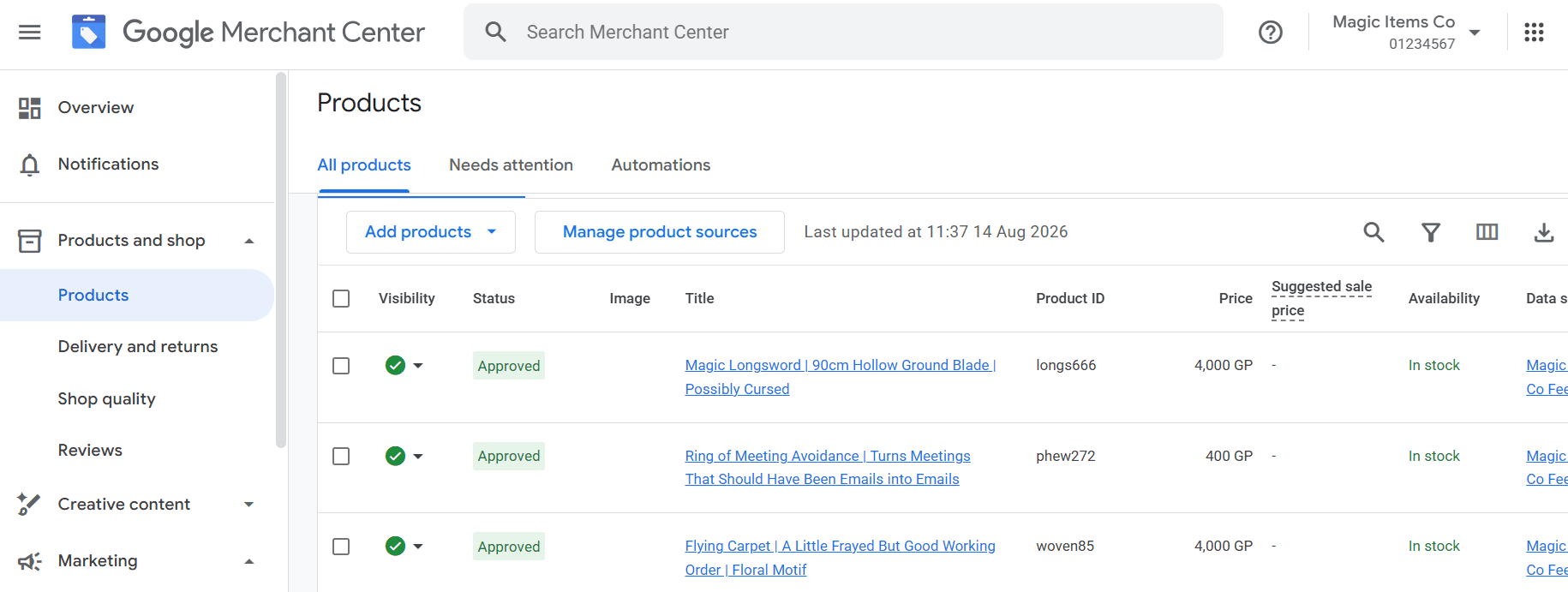
Click the downward arrow button on the far right, just above the table of products. That’s the download button.
A message saying “Preparing File” will pop up.
When it’s finished, the zip file will be in your Downloads folder.
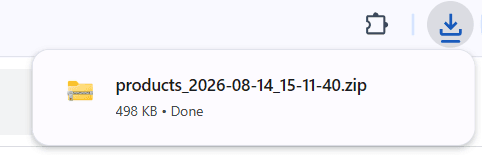
Find this in your file manager of choice, and extract the files. To do this in Windows, right click and select “Extract All…”
You then have your TSV file of product information available to use.
How do I open a TSV file?
There are two options:
- Open your spreadsheet program of choice and drag in the file
- Import it into Google Sheets
I’ll be using Google Sheets as an example, because it’s the same process whether you’re on PC or Mac.
Why not just double click?
If you double click the extracted TSV file and try to open it that way, the dialog box that pops up often isn’t very helpful.
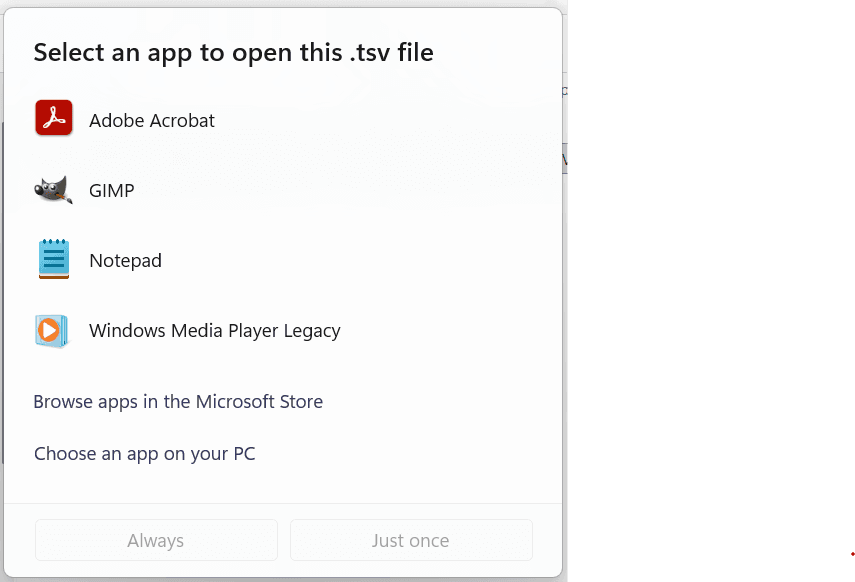
None of these programs are good choices for opening this kind of file. Microsoft Excel isn’t there. LibreOffice Calc isn’t there. On Mac, it may open in a text editor, but that isn’t very helpful either.
You could “Choose an app on your PC”, but then you'd have to navigate to the exact location of the executable file for the program you want. Too much effort.
Opening a TSV in Google Sheets
Firstly, create a new Google Sheet.
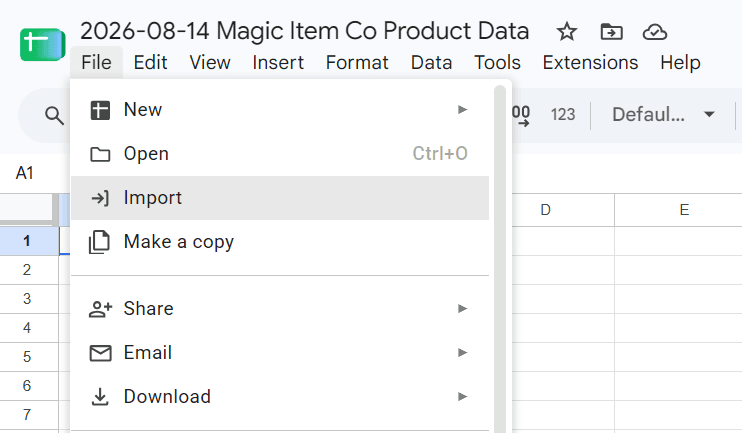
Give it a name and then go to “File” > “Import”.
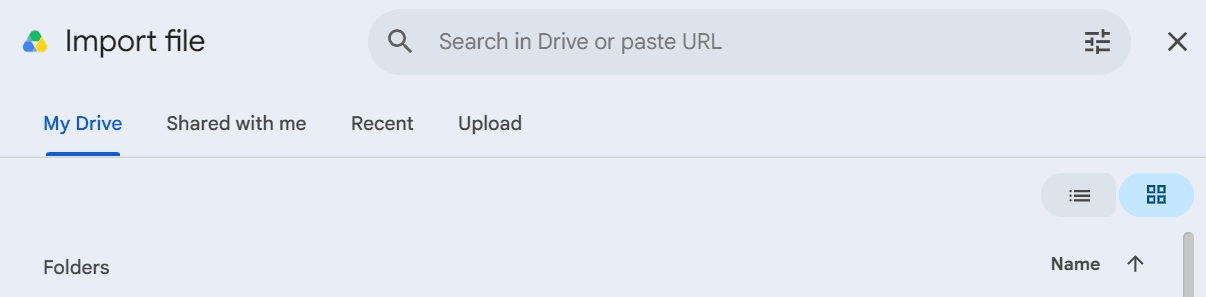
Click on the “Upload” tab on the right of the "Import file" dialog box.
Then click on “Browse” and navigate to where the TSV file is saved, or drag it in.
If you use the Browse button, you’ll notice that the folder you extracted earlier appears to be empty at first. You’ll need to select “All Files” on the dropdown menu on the bottom right to make the TSV appear.
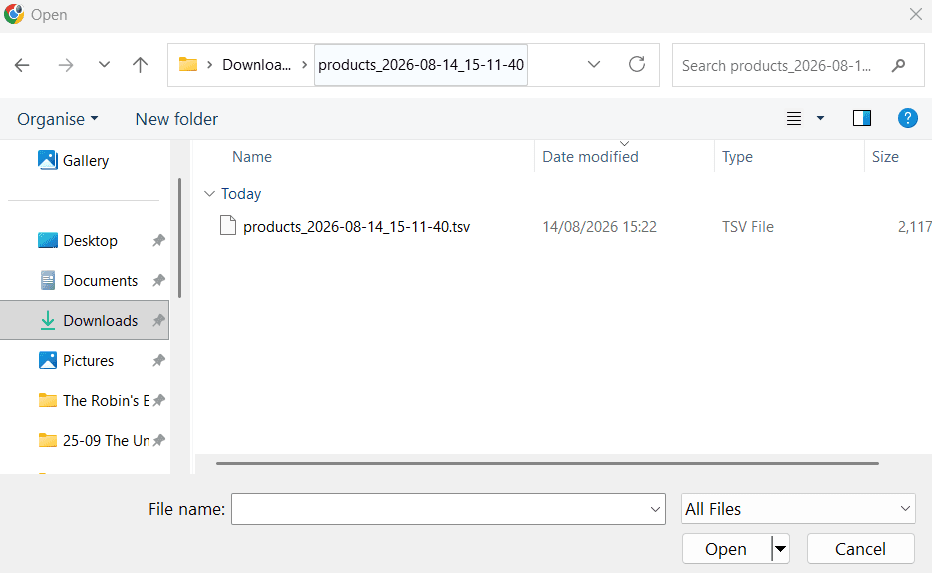
Select the file and click “Open”.
Another dialog box will appear. Change the “Import location” to whatever you want. I generally “Replace current sheet”.
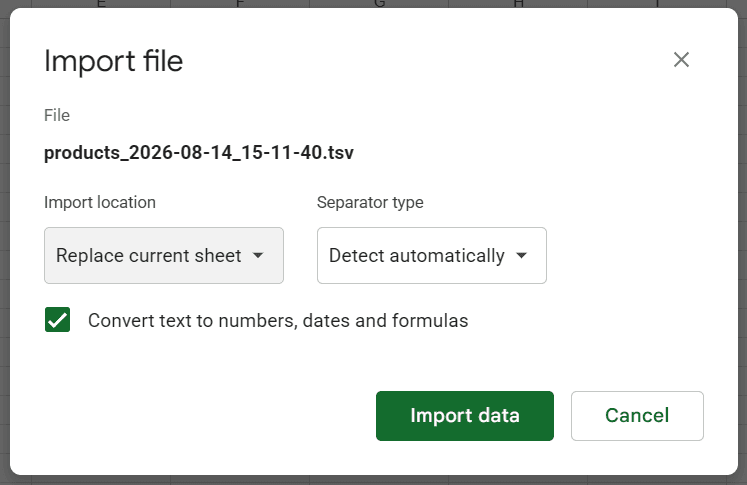
You can leave the “Separator type” as “Detect automatically”.
Click on the “Import data” button.
Voilà, your data is there for you to use.
Why would I want to download data from Google Merchant Centre?
Downloading data from GMC is incredibly useful if you need a spreadsheet to analyse or manipulate the data. Or, if you need to compare and merge data from different sources.
To give just a few examples:
- Review product titles, edit ones that are low quality, and reupload the new ones as a supplemental feed.
- Compare IDs in GMC with SKUs from your website and check for things that are missing from your shopping feed.
- Compare product prices in GMC with those from your website to make sure they’re correct.
- Combine the “creation date” in GMC with performance data from Google Ads to make sure your analysis isn’t skewed by products that are very new.

How do I compare and combine spreadsheet data?
Let’s assume you’ve downloaded two datasets: product data from GMC and data from another source (Google Ads, your website, etc). Those spreadsheets will contain different fields and information.
To compare or merge the data, you can use VLOOKUP and XLOOKUP formulas in your favourite spreadsheet application.
- VLOOKUP allows you to check if an item on one list is on a second list.
- XLOOKUP is similar, but if there’s a match, it returns a value from a different column of the spreadsheet.
Because products in Google Merchant Centre are linked to an ID that's usually the SKU of the product, you’ll most often use that to see if there’s a match.
I’ll be using Google Sheets again for these examples, but the same thing will work in other spreadsheet programs.
Using VLOOKUP to find missing products
A simplified VLOOKUP formula is as follows:
=VLOOKUP(cell to check,column to check against,1,FALSE)
The “1” in the formula allows you to return data from a different column, but since an XLOOKUP is an easier way of doing that, we can safely ignore that option.
FALSE means the formula isn’t using “fuzzy” matching. Again, you’ll probably want to make that your default.
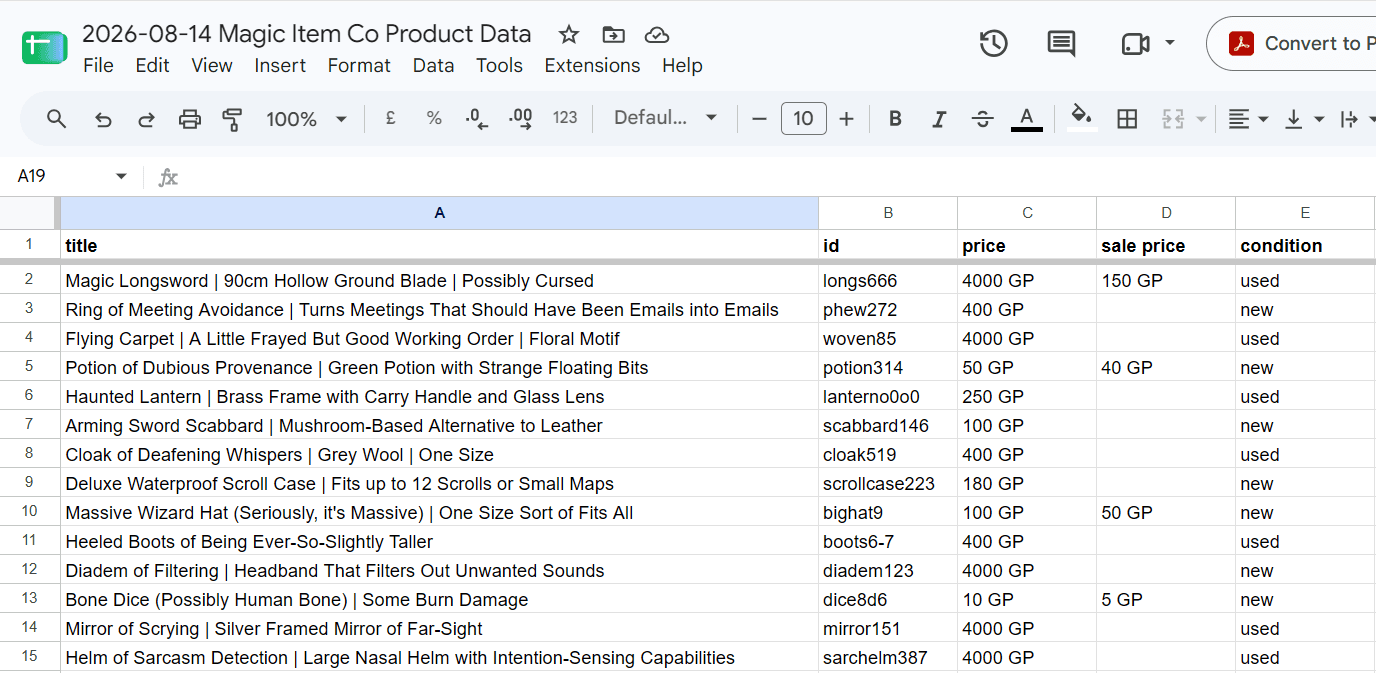
Here’s what a spreadsheet of product data from GMC might look like:
And here’s a list of products exported from the corresponding website:
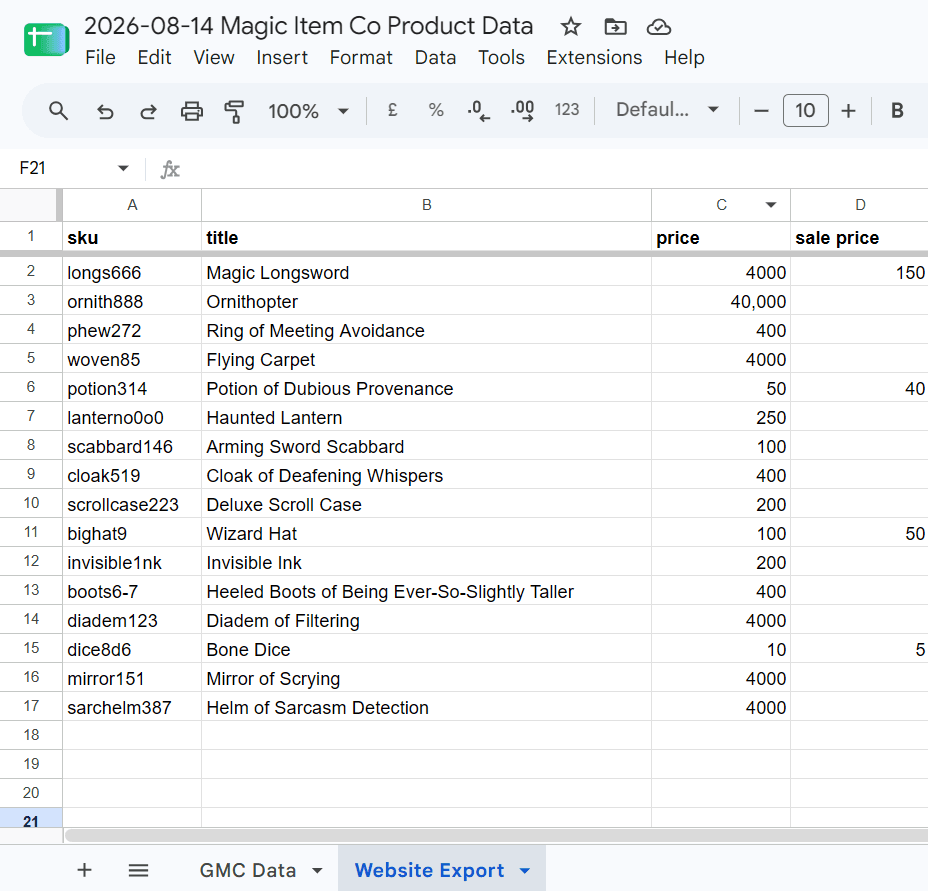
I’ve put the data on one Google Sheet, as different tabs / worksheets. That makes it easier to work with.
Let’s use a VLOOKUP to see if there are any products missing from GMC.
First, we add a new column on the Website Export tab and call it “On GMC?”
Then in the first cell of that column, we enter the VLOOKUP formula, referring to the SKU cell of the row and comparing it with the entire “id” column from the GMC Data tab.
=VLOOKUP(A2,'GMC Data'!B:B,1,FALSE)
After filling the formula down, we can see the ID appear in the column if there’s a match. Otherwise, it will say “#N/A”.
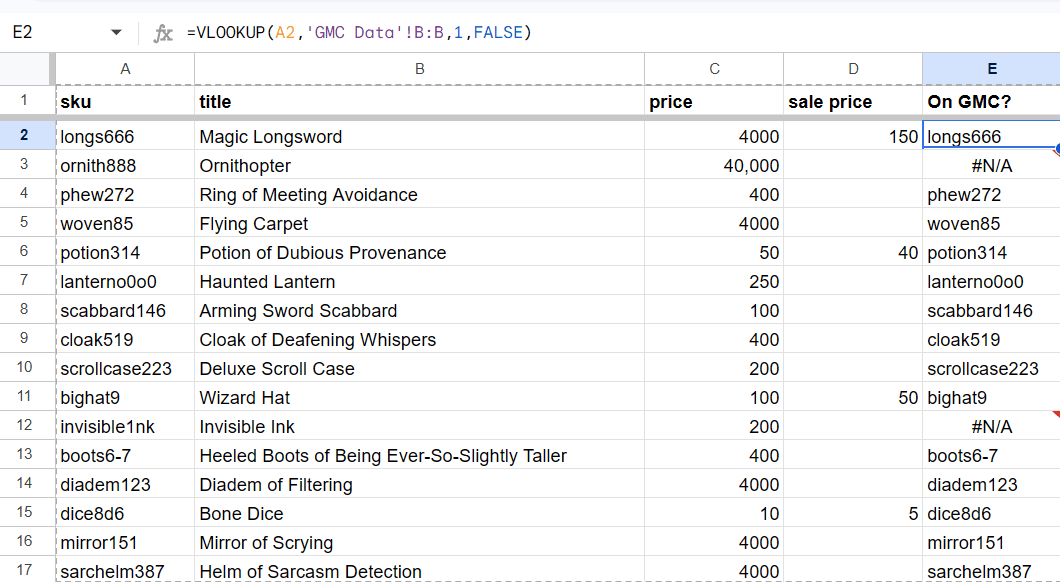
We can see that the Ornithopter and Invisible Ink are missing from GMC. If those weren’t deliberately excluded (because they’re out of stock, for example), we’d need to look at the product feed and see why they aren’t there.
For longer lists, it can be useful to copy the formula and “paste as values”. Then, sort or filter the sheet to see all the missing products together.
Although this product data is made up, I've used this exact technique to find hundreds of products missing from a clients' GMC accounts - something that's otherwise very difficult to spot.
Using XLOOKUP to combine data from two spreadsheets
The XLOOKUP formula is simple, too:
=XLOOKUP(cell to check,column to check against,column to return data from)
The first two elements here are the same as with a VLOOKUP: you’re looking to see if the value in a particular cell appears in a list. The difference this time is that you're also specifying what should appear if there’s a match.
Instead of the SKU, we can pull data from any other column on the sheet.
Let’s compare prices this time.
GMC will generally identify price mismatches for you, but not always. I've seen cases where products with incorrect data weren't even disapproved, despite Google having noticed that the price is different. (And it hadn't updated it via automatic price updates either!)
We’ll start by adding a new column to the GMC Data worksheet and calling it “Website Price”.
Then, use an XLOOKUP to populate that column with the appropriate data:
=XLOOKUP(B2,'Website Export'!A:A,'Website Export'!C:C)
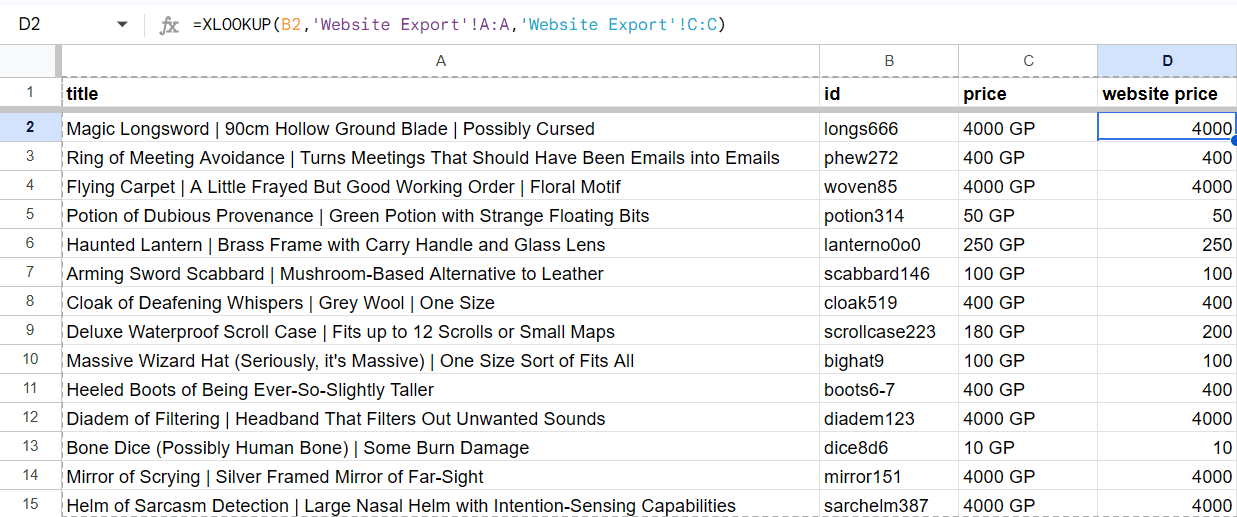
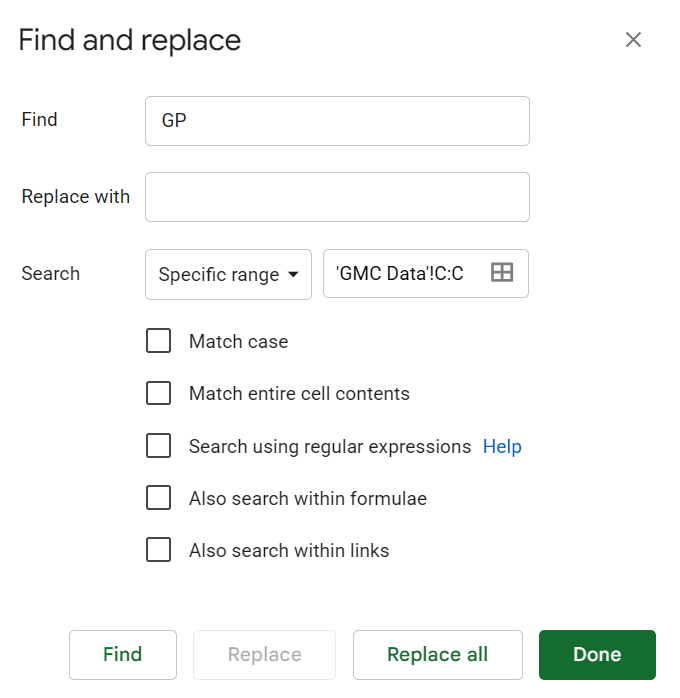
The format of the prices from the two sheets is slightly different, but we can easily fix that by using Find/Replace and replacing “ GP” with nothing.
Then, we can add another new column and use the =cell1=cell2 formula to compare the cells.
=C2=D2
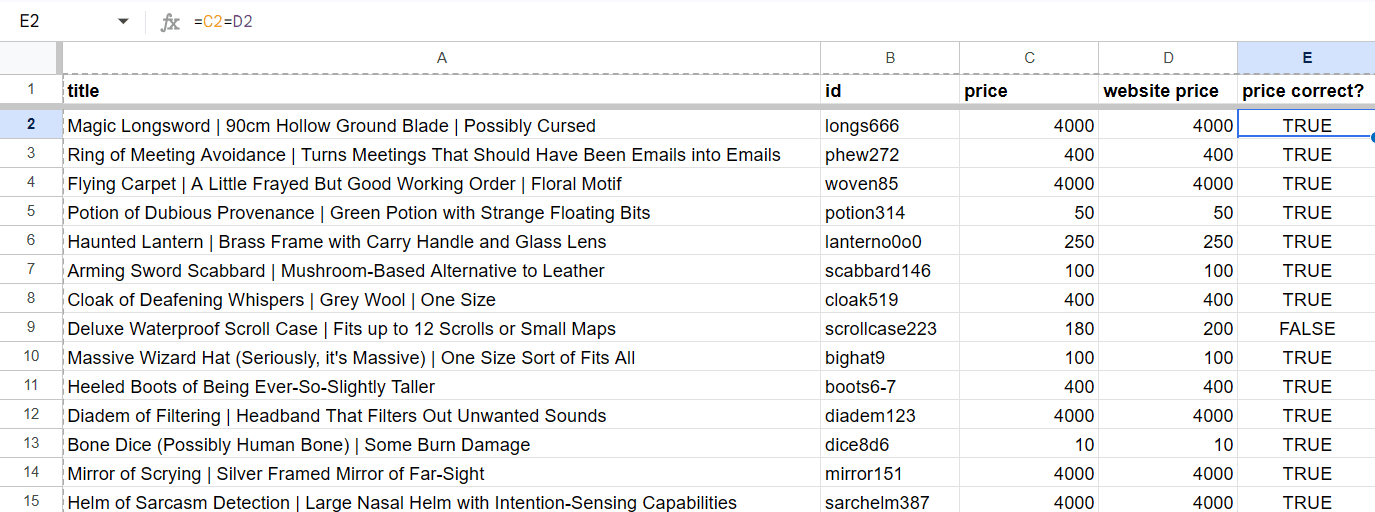
Anything that says FALSE is different, so we can see that the Scroll Case has the wrong price on GMC. Again, that could be investigated and fixed.
Use conditional formatting, sorting or filtering to make any issues you’ve found easier to see.
Why SEMs love spreadsheets
There are plenty of ways to analyse data these days. Third-party tools. Generative AI. But sometimes, you can’t beat getting a spreadsheet or two and manipulating the data yourself.
Once you have the skills, it doesn’t take much time. And it allows you to spot issues that GMC can’t report on automatically (like products that are missing from your feed).
The scope goes beyond GMC as well, or even Google Ads. If you’re an SEO, you can use similar techniques to analyse site crawls and spot pages that have been added to or removed from a website over time.
See what other uses you can find for VLOOKUP and XLOOKUP formulas. You won’t regret it.